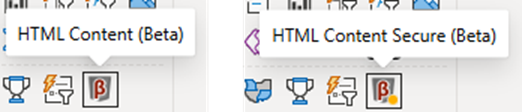
Early Access Builds
The publish and release cycle for custom visuals in Power BI can be quite long, and once a version is live in AppSource, getting a fix back through certification takes time. To catch issues before they reach everyone, HTML Content publishes early access builds through two channels - Alpha and Beta - ahead of each AppSource submission.
Anyone who wants to help test these builds is very welcome, and feedback is greatly appreciated.
Is this for me?
A quick checklist of what you're signing up for:
- Early access builds are provided on the basis of giving feedback to the maintainer.
- They are not supported for production use.
- Formal documentation is not always complete until a release is ready to publish, so some discovery may be required between builds. It's always best to at least do a cursory analysis of the Change Log, as even if the doc isn't fully written, we'll try to itemize pertinent details here as soon as we can.
- Early access builds are decoupled from AppSource - they are not certified, and they do not self-update.
- Access to early builds is a two-way street - please let us know about anything you find, and you'll help everyone get a better release when it lands in AppSource.
General information
Two packages in every build
Each channel build attaches two .pbiviz packages - one per edition:
| Package | Edition | What it does |
|---|---|---|
HTML-Content.<version>.pbiviz | HTML Content | Full HTML rendering, including external content where your tenant allows it. |
HTML-Content-Secure.<version>.pbiviz | HTML Content Secure | Sanitizes markup and blocks external communication, matching the behavior of the certified AppSource visual. |
Channel builds are not tied to AppSource and carry none of the certification benefits of the published certified visual. The Secure package is provided so you can verify sanitization and external-communication blocking against your own content before the certified release catches up.
Side-by-side with your existing visuals
Channel builds use channel-specific visual IDs, so they can be side-loaded into a report alongside the AppSource visuals (or another channel's build) without replacing or interfering with them. They do not auto-update - you choose when to move to a newer drop by importing it. Importing a newer build of the same channel into a report replaces that channel's previous build.
Identifying your build
Channel builds stamp the version shown inside Power BI (on the landing page and the About dialog accessible from the Visualizations pane) with the build's commit date and short hash in the fourth segment. This pins the exact commit your build was produced from, e.g.:
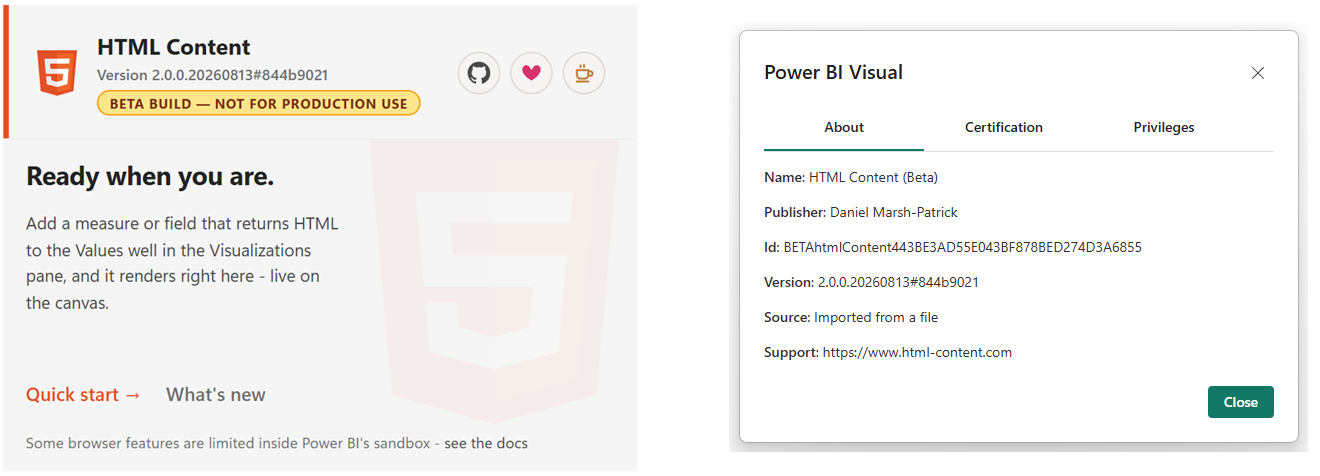
This follows AppSource versioning convention, e.g. 2.0.0.0.
Fun fact: if the fourth segment is > 0, this is the number of times we went through re-review 😅
The package filename (for example, HTML-Content.2.0.0.beta-1.pbiviz) identifies the edition and drop you downloaded. When providing feedback, quoting the named release (e.g. 2.0.0.beta-1) should be enough, but the specific version stamp is always helpful for additional context if you don't mind providing it.
Release notifications
If you don't mind the emails, you can subscribe to release notifications by watching the GitHub repository - GitHub's notification docs cover how to set this up.
Providing feedback
If something doesn't work as expected, please create an issue in the GitHub repository. Detail makes all the difference:
- The full package filename (e.g.
HTML-Content.2.0.0.beta-1.pbiviz) and ideally the in-visual version (e.g.2.0.0.20260813#5f7ca17e) - see Identifying your build. - Steps to reproduce the issue.
- Expected vs. actual behavior - ideally including how it differs from the current AppSource release.
- Screenshots or short videos showing the problem.
- Sample content, measures, or a workbook (with public or anonymized data).
Please don't assume someone else has already reported an issue - if you see it, report it.
Test with copies of production reports, not the originals - that way you can easily revert without losing any work.
Alpha Channel
The Alpha Channel carries the latest build for the current development effort - features may still be in flux between drops.
Accessing the build
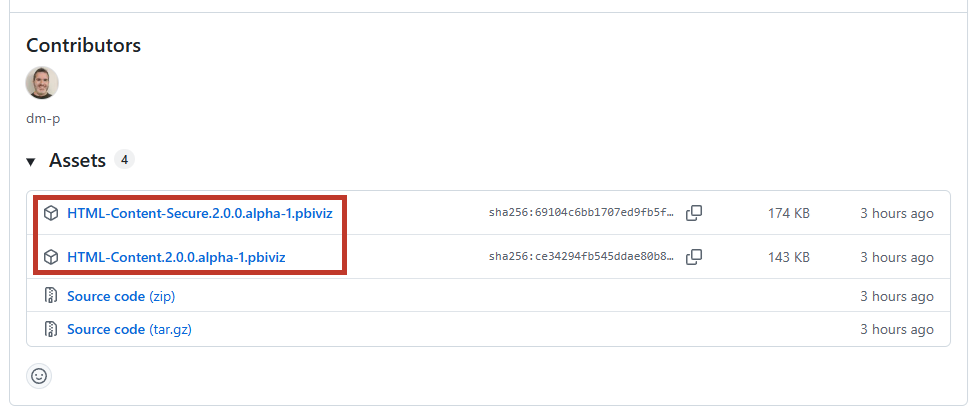
The Alpha Channel build is published to the alpha release tag in the visual's GitHub repository. It is always the latest alpha for the current development effort, and both .pbiviz packages are listed in the assets at the bottom of the release page, e.g.:
Installing and identifying
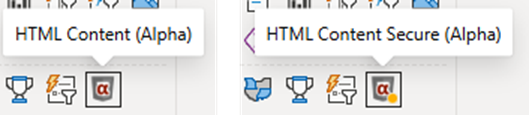
Install the build by importing the downloaded .pbiviz into your report. The visual appears in the Visualizations pane with its own channel-specific icon and is named to identify itself as an Alpha Channel build, e.g.:
Channel builds also show an amber badge beneath the version on the visual's landing page (e.g. ALPHA BUILD - NOT FOR PRODUCTION USE), so you can confirm what you're running at a glance.
Beta Channel
The Beta Channel carries release-candidate builds - feature-complete versions being validated ahead of an AppSource submission.
Accessing the build
The Beta Channel build is published to the beta release tag in the visual's GitHub repository, with both .pbiviz packages in the release assets (refer to the alpha section for an example of how these assets will look on the release page).
Installing and identifying
Installation is the same as for the Alpha Channel - import the downloaded .pbiviz into your report. The Beta Channel build has its own icon and visual ID, so it can be installed alongside the AppSource visuals and any Alpha Channel build, e.g.: