Stylesheet
The Stylesheet property menu lets you add CSS at the top level, rather than managing styling in-line or contextually. You can do this either by using a measure (via conditional formatting) or by providing a CSS definition manually. As of 2.0, the Body template can be driven by a measure in the same way.
If you're using Context (which uses div elements to separate rows), you can change the display behavior to create alternate layouts.
Short DOM Overview
If we refer back to our example from earlier, this has one entry per value of [Country], e.g.:
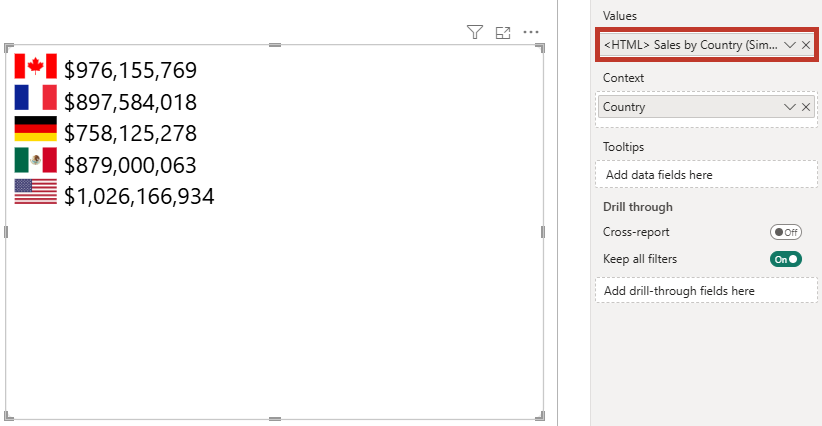
The body is contained in a div element with an id value of htmlContent. Each row in the visual dataset is contained within a div element with the class name htmlViewerEntry.
Visuals using legacy (v1) rendering (enabled automatically for reports migrated from v1.x) wrap each row in an extra <div> (<div class="htmlViewerEntry"><div>...</div></div>). Selectors like .htmlViewerEntry > div only match in that mode, or with a matching authored Row template.
The CSS selectors for these elements are #htmlContent and .htmlViewerEntry respectively, and this can be confirmed by inspecting the raw HTML (using the Show Raw HTML property).
Layouts can be even more flexible with body/row template configuration. Refer to the Templates page for more details on understanding the HTML Content DOM.
Making CSS Changes
For example, to change the flag layout to horizontal and display a background, we could create a measure like the following:
<CSS> Horizontal Flag = "
    #htmlContent {
        width: 100%;
        display: flex;
        flex-direction: row;
        justify-content: center;
    }
    .htmlViewerEntry {
        width: 100px;
        margin: 5px;
        padding: 5px;
        background-color: #eaeaea;
    }"
...and add this to the Stylesheet property in the properties pane using conditional formatting to achieve the following result:

If we use the Show Raw HTML property or Diagnostics, the stylesheet and output are combined for debugging, or to copy/paste elsewhere, e.g.:
<style id="visualUserStylesheet" name="visualUserStylesheet" type="text/css">
  #htmlContent {
    width: 100%;
    display: flex;
    flex-direction: row;
    justify-content: center;
  }

  .htmlViewerEntry {
    width: 100px;
    margin: 5px;
    padding: 5px;
    background-color: #eaeaea;
  }
</style>
<div id="htmlContent">
  <div class="htmlViewerEntry">
    <img height="16" src="https://html-content.com/img/flags/CA.png" />
    <b>$24,887,655</b>
  </div>
  <div class="htmlViewerEntry">
    <img height="16" src="https://html-content.com/img/flags/FR.png" />
    <b>$24,354,172</b>
  </div>
  <div class="htmlViewerEntry">
    <img height="16" src="https://html-content.com/img/flags/DE.png" />
    <b>$23,505,341</b>
  </div>
  <div class="htmlViewerEntry">
    <img height="16" src="https://html-content.com/img/flags/MX.png" />
    <b>$20,949,352</b>
  </div>
  <div class="htmlViewerEntry">
    <img height="16" src="https://html-content.com/img/flags/US.png" />
    <b>$25,029,830</b>
  </div>
</div>
If using the stylesheet property, the styling options in the Content formatting menu are disabled and not applied to your output, so as to give you more explicit control and avoid potential conflicts that might otherwise arise.
Additional Things to Consider
- You can also consume the report theme's palette in your stylesheet via theme color variables - no hard-coded hex values required.
- If commenting, remember that these should match the CSS specification (block comments). See the FAQ for what can go wrong here, especially if using the certified edition.